Module 4: Pipelines as Code
Coolstuff Store’s pipeline is working, but the team has spotted a friction point. Every time a developer pushes code, someone has to manually run oc apply to create a new PipelineRun. Webhooks are configured by hand, pipeline definitions live only in the cluster, and there’s no way to see pipeline status directly on a pull request.
Pipelines as Code (PAC) solves all of this. It stores your pipeline definitions in the .tekton/ directory of your application repository, triggers pipeline runs automatically on Git events such as push and pull request, and reports status back to the Git provider so developers see CI results without leaving their browser.
In this module, you’ll connect your Gitea repository to Pipelines as Code, store a PipelineRun template alongside your application code, and trigger your first automated pipeline run by pushing a commit.
Learning objectives
By the end of this module, you’ll be able to:
-
Explain how Pipelines as Code differs from manually managed Tekton pipelines
-
Create a
Repositorycustom resource to connect a Git repository to OpenShift Pipelines -
Store a PipelineRun template in the
.tekton/directory with the correct event annotations -
Trigger pipeline runs automatically by pushing to a Git branch
-
Use GitOps PR comments (
/retest,/cancel) to control pipeline execution
Setting up Pipeline-as-code
With a single pane of glass from your SCM provider (GitHub, GitLab, Bitbucket, or Gitea), pipeline runs are automatically triggered for Pull Requests and Push events.
According to the Pipelines as Code project, PAC follows a GitOps model for CI/CD:
-
Pipeline definitions live in Git: PipelineRun templates are stored in a
.tekton/directory in the application repository. They are versioned, reviewed, and merged alongside application code. -
Events trigger runs automatically: PAC listens for Git events (push, pull request) via a webhook. When a matching event arrives, PAC creates a PipelineRun in the cluster automatically.
-
Status is reported back to Git: PAC updates the pull request or commit status in the Git provider so developers see pass/fail results without checking OpenShift directly.
-
GitOps commands control execution: Authorized users can comment
/retest,/test, or/cancelon a pull request to control pipeline runs without touching the cluster.
The connection between OpenShift and the Git repository is managed by the Repository custom resource. One Repository per Git repository tells PAC: which namespace to create PipelineRuns in, how to authenticate with the Git provider, and which webhook secret to use.
| Pipelines as Code is included with Red Hat OpenShift Pipelines 1.21 and is installed automatically by the operator. No separate installation is needed. |
Exercise 1: Set up the Pipelines as Code repository
In this exercise, you’ll create a personal access token in Gitea, store it in a Kubernetes Secret, and create a Repository custom resource that connects your coolstuff-app Gitea repository to OpenShift Pipelines.
Verify Pipelines as Code is running
-
In the Terminal tab, confirm you are in the correct project:
oc project tekton-workshop-%OPENSHIFT_USERNAME% -
Confirm the PAC controller is installed and ready to use.
oc api-resources | grep pipelinesascodeExpected output:
NAME                              SHORTNAME   APIVERSION                          NAMESPACED   KIND
openshiftpipelinesascodes         opac,pac    operator.tekton.dev/v1alpha1        false        OpenShiftPipelinesAsCode
repositories                      repo        pipelinesascode.tekton.dev/v1alpha1 true         Repository
-
The PAC controller’s public route URL is needed for this exercise, Gitea will use this to send webhook events to OpenShift:
https://pipelines-as-code-controller-openshift-pipelines.%APPS_HOSTNAME_SUFFIX%Copy this URL. You will need it when configuring the webhook in Gitea.
Create a Gitea personal access token
-
Open the Gitea tab again and log in with your credentials if you have been logged out.
If you have closed the Gitea tab -
Click on the 'Developer Repository' button below
Then,
click on 'Sign In' and login via OpenShift as user %OPENSHIFT_USERNAME%/%OPENSHIFT_PASSWORD%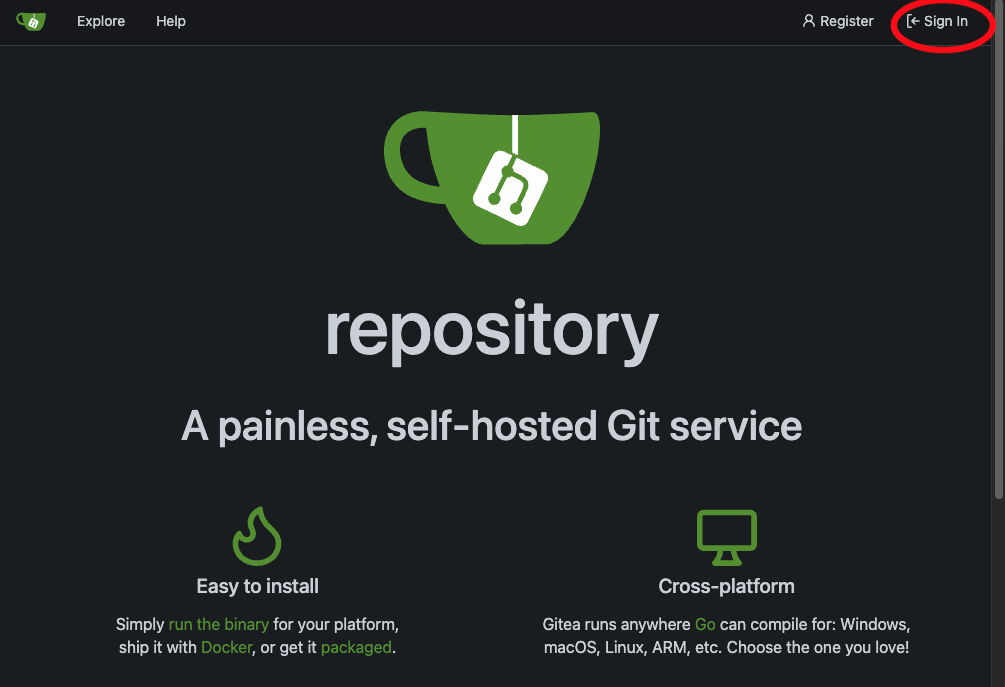 Figure 1. Gitea’s start page with sign in
 -
Click your profile avatar in the top right corner, then select Settings.
-
In the left side menu, click Applications.
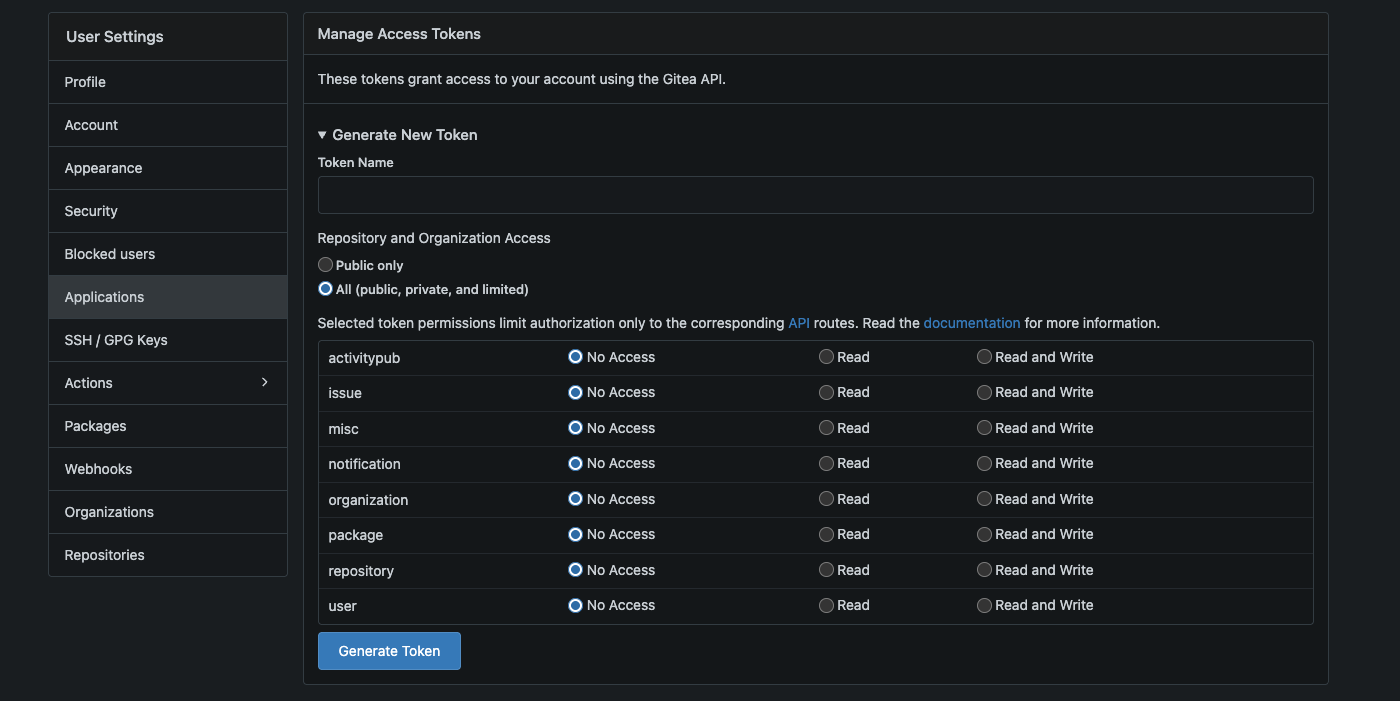 Figure 2. Gitea’s settings page
 -
Under Manage access tokens, fill in:
-
Token name:
pac-token -
Permissions:
-
Select
Issues: Read/Write -
And
Repository: Read/Write
-
-
-
Click Generate token this will generate a token and show it in a new view.
|
The generated token is only shown once - DO NOT close or leave the token view yet. We will return here soon and copy the value. |
Create the webhook secret and Kubernetes Secret
We will now start to set up our tokens in OpenShift.
-
In the terminal, generate a random webhook secret:
WEBHOOK_SECRET=$(openssl rand -hex 20) echo "Webhook secret: $WEBHOOK_SECRET" -
Copy the value shown. You will need it when creating the Gitea webhook.
-
Create a Kubernetes Secret that stores both the Gitea token and webhook secret. Replace
<your-gitea-token>with the token you copied from Gitea, and<your-webhook-secret>with the value from the previous step:cat > gitea-pac-secret.yaml << 'EOF' apiVersion: v1 kind: Secret metadata: name: gitea-pac-secret namespace: tekton-workshop-%OPENSHIFT_USERNAME% type: Opaque stringData: provider.token: "<your-gitea-token>" webhook.secret: "<your-webhook-secret>" EOF -
Edit the file(using vim, nano etc) and replace the placeholder values, then apply it:
oc apply -f gitea-pac-secret.yamlExpected output:
secret/gitea-pac-secret created
Create the Repository custom resource
-
Create the
Repositoryresource that links your Gitea repository to OpenShift Pipelines:cat > coolstuff-repository.yaml << 'EOF' apiVersion: pipelinesascode.tekton.dev/v1alpha1 kind: Repository metadata: name: coolstuff-app namespace: tekton-workshop-%OPENSHIFT_USERNAME% spec: url: "https://gitea-workshop-gitea.%APPS_HOSTNAME_SUFFIX%/%OPENSHIFT_USERNAME%/coolstuff-app" git_provider: url: "https://gitea-workshop-gitea.%APPS_HOSTNAME_SUFFIX%" secret: name: "gitea-pac-secret" key: "provider.token" webhook_secret: name: "gitea-pac-secret" key: "webhook.secret" EOFMake sure your User-id is correct in the first Gitea-url before applying. -
Apply the Repository:
oc apply -f coolstuff-repository.yamlExpected output:
repository.pipelinesascode.tekton.dev/coolstuff-app created
-
Confirm the Repository was created:
oc get repository coolstuff-appExpected output:
NAME             URL
coolstuff-app    https://gitea-workshop.../userXX/coolstuff-app
Verify
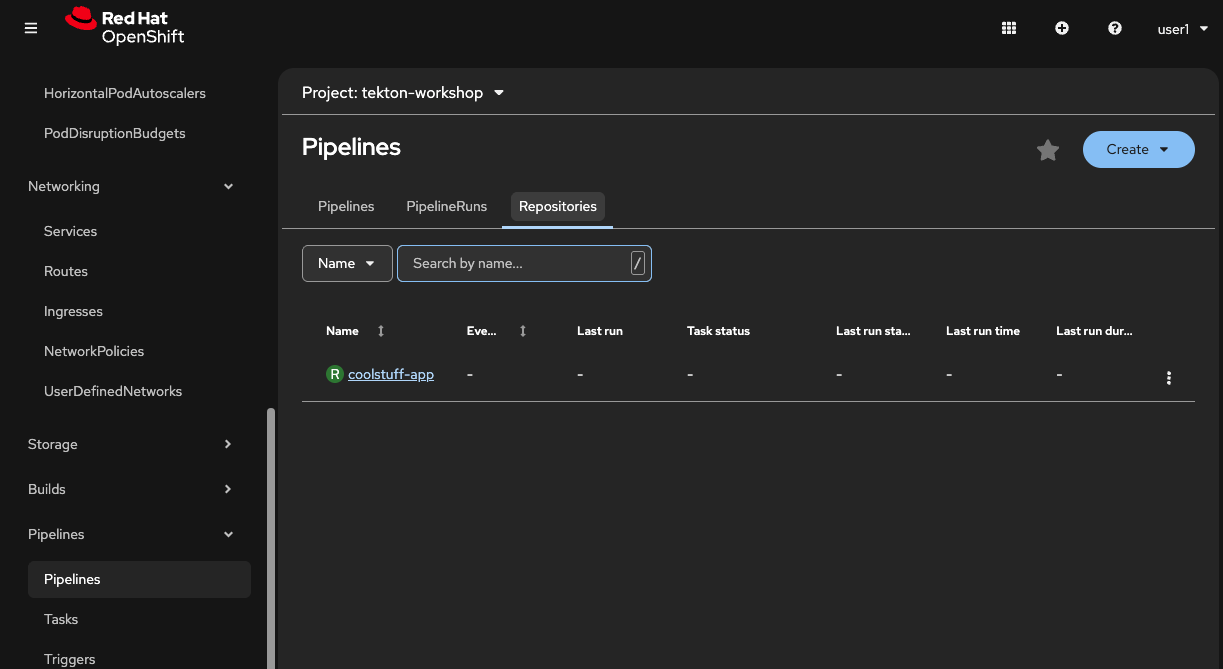
Verify that the repository is visible in the Pipelines UI. In the OpenShift console, fold out Pipelines and click in Pipelines.
-
Click on the Repositories tab in the center view. The coolstuff-app repository should be visible.
Configure the Gitea webhook
-
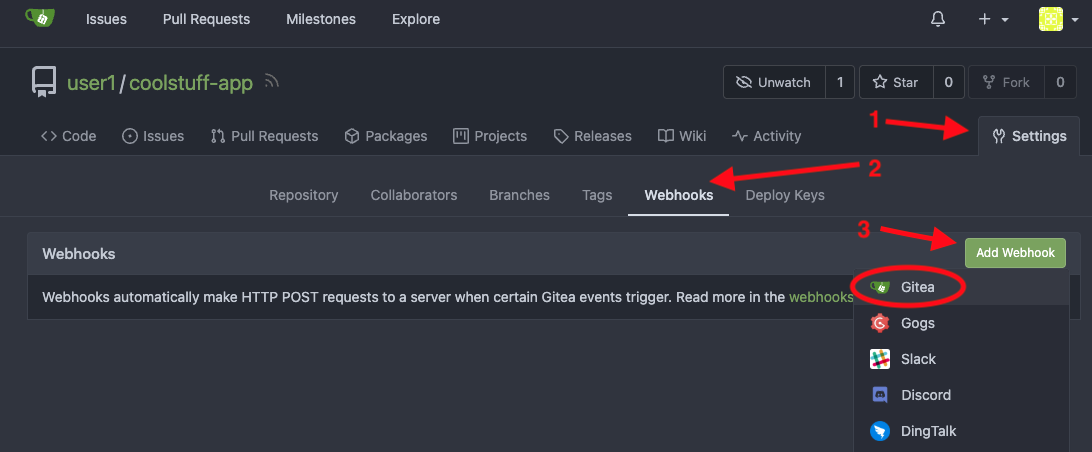
In Gitea, navigate to your
coolstuff-apprepository and click Settings, then Webhooks. -
Click Add webhook, then select Gitea.
-
Fill in the webhook details as below, leave the other values as default:
-
Target URL:
https://pipelines-as-code-controller-openshift-pipelines.%APPS_HOSTNAME_SUFFIX% -
Secret: paste the webhook secret value you generated (
$WEBHOOK_SECRET) -
Trigger on: select
Custom Events-
Then mark
Push,Pull Request CommentandPull Request
-
-
-
Click Add webhook.
-
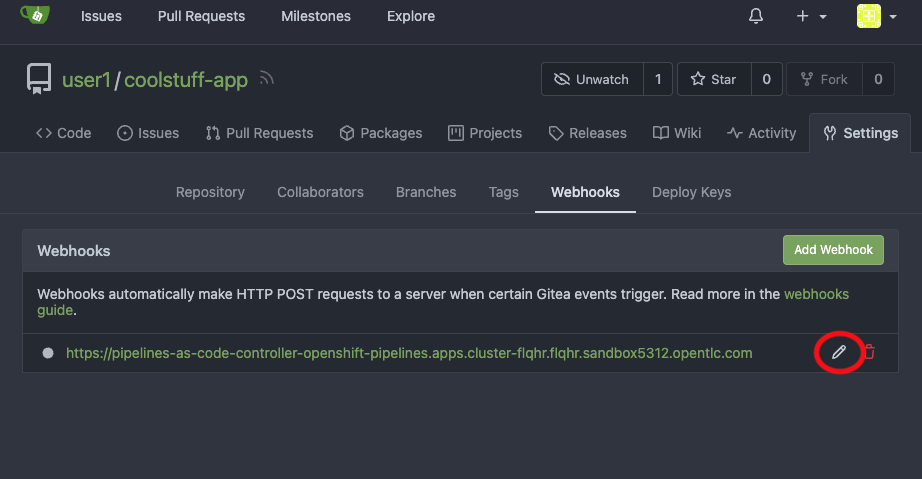
In the webhook screen, verify that the webhook has been created.
-
Click on the pencil on the newly created webhook then scroll to the bottom of the page.
-
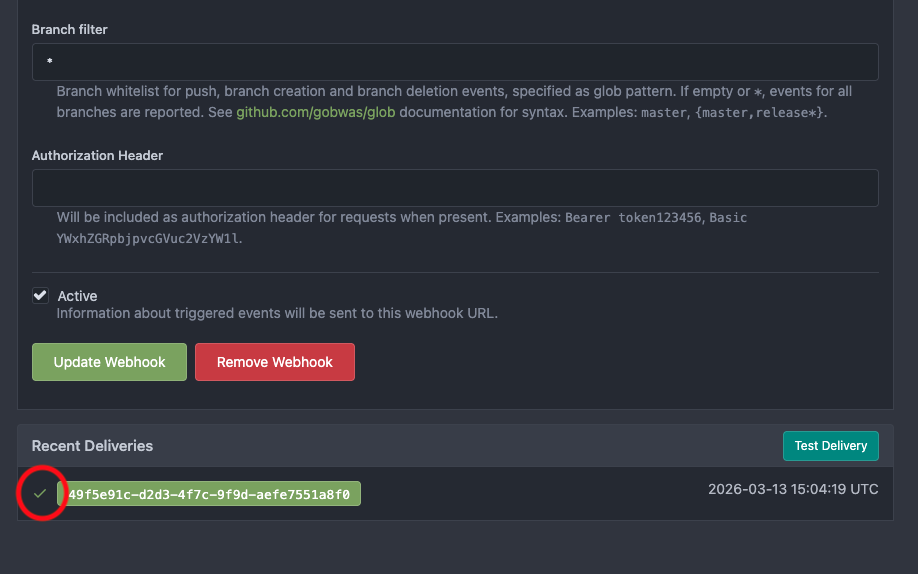
Click Test Push Event to confirm Gitea can reach the PAC controller.
-
Verify at the bottom of the screen that all looks good(green checkmark on the webhook).
-
Click the randomly generated string to fold the Request/Response details up.
-
-
A
202response confirms the connection is working.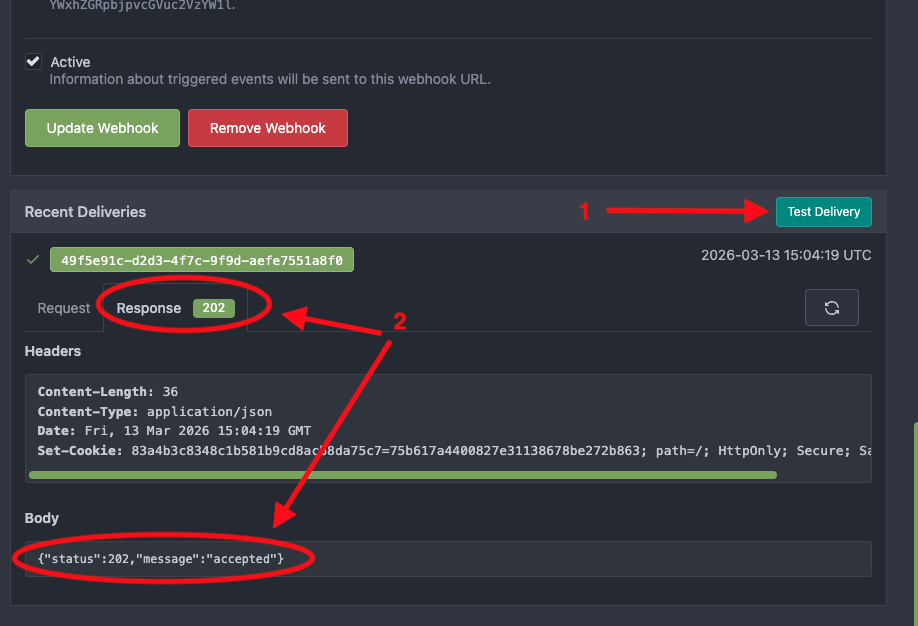 Figure 3. Gitea webhook configured to send events to Pipelines as Code
== Exercise 2: Add a PipelineRun template to the repository
With the Repository resource in place, PAC will watch your Gitea repository for events. Now you’ll add a PipelineRun template to the .tekton/ directory.
PAC automatically detects this file, reads its event annotations, and creates a PipelineRun whenever a matching Git event arrives.
Create the .tekton directory and PipelineRun template
-
In the Gitea web UI, navigate to your
coolstuff-apprepository. -
Click Add file button to create a new file.
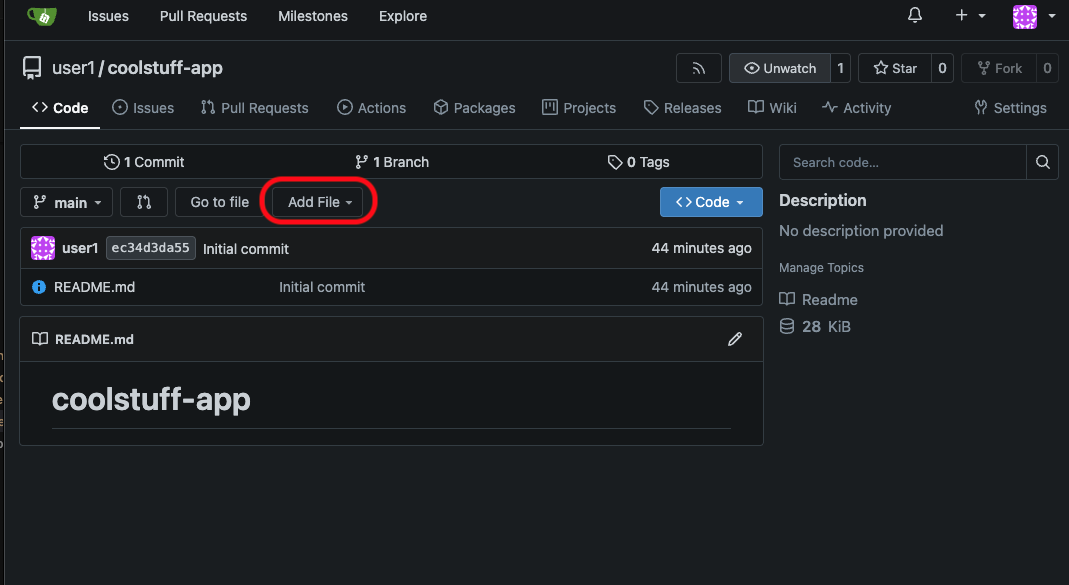
-
Set the file path to
.tekton/push-pipeline.yaml(include the directory name in the path — Gitea creates the directory automatically). -
Click on the first empty row in the file editor in the central view then paste the following PipelineRun template as the file content:
apiVersion: tekton.dev/v1
kind: PipelineRun
metadata:
  name: coolstuff-build-push
  annotations:
    pipelinesascode.tekton.dev/on-event: "[push]"
    pipelinesascode.tekton.dev/on-target-branch: "[main]"
    pipelinesascode.tekton.dev/max-keep-runs: "5"
spec:
  pipelineSpec:
    tasks:
      - name: build
        taskRef:
          resolver: cluster
          params:
            - name: kind
              value: task
            - name: name
              value: build-coolstuff-app
            - name: namespace
              value: tekton-workshop-%OPENSHIFT_USERNAME%
        params:
          - name: app-name
            value: "coolstuff-store-app"
          - name: app-version
            value: "{{ revision }}"
        workspaces:
          - name: source
            workspace: shared-data
      - name: summarize
        runAfter:
          - build
        taskRef:
          resolver: cluster
          params:
            - name: kind
              value: task
            - name: name
              value: summarize-build
            - name: namespace
              value: tekton-workshop-%OPENSHIFT_USERNAME%
        params:
          - name: app-name
            value: "coolstuff-store-app"
          - name: app-version
            value: "{{ revision }}"
        workspaces:
          - name: source
            workspace: shared-data
    workspaces:
      - name: shared-data
  workspaces:
    - name: shared-data
      volumeClaimTemplate:
        spec:
          accessModes:
            - ReadWriteOnce
          resources:
            requests:
              storage: 500Mi
The {{ revision }}placeholder is replaced by PAC with the actual commit SHA at runtime. The Tasksbuild-coolstuff-appandsummarize-buildmust exist in the cluster. They were created in Modules 2 and 3.This template, like the pipelines before uses VolumeClaimTemplateas the workspace backing to store data between tasks. -
Scroll down to the bottom of the page and set the commit message to
Add PAC pipeline definition -
Click Commit changes to commit directly to
main.
Watch the pipeline trigger automatically
-
Switch back to the Terminal tab and watch for new PipelineRuns:
oc get pipelinerun -wWithin a few seconds of the Gitea commit, PAC creates a new PipelineRun automatically:
NAME                                           SUCCEEDED   REASON    STARTTIME   COMPLETIONTIME
coolstuff-build-push-<revision>-push-...      Unknown     Running   5s
coolstuff-build-push-<revision>-push-...      True        Succeeded 35s         36s
Press Ctrl+C to stop watching. -
View the logs of the PAC-triggered run:
tkn pipelinerun logs --last -fExpected output includes:
[build : validate] === Validating coolstuff-store-app v<commit-sha> ===
[build : validate] Validation passed.
[build : test] All tests passed.
[build : package] Package created: coolstuff-store-app-<commit-sha>.tar.gz
[summarize : summarize] Artifact    : coolstuff-store-app-<commit-sha>.tar.gz
[summarize : summarize] Status      : SUCCESS -- ready for deployment
-
View the pipeline run in the OpenShift console.
-
Navigate to Pipelines, then PipelineRuns.
-
The PAC-triggered run will be listed alongside the manually created runs from earlier modules:
coolstuff-build-push-RANDOM_ID.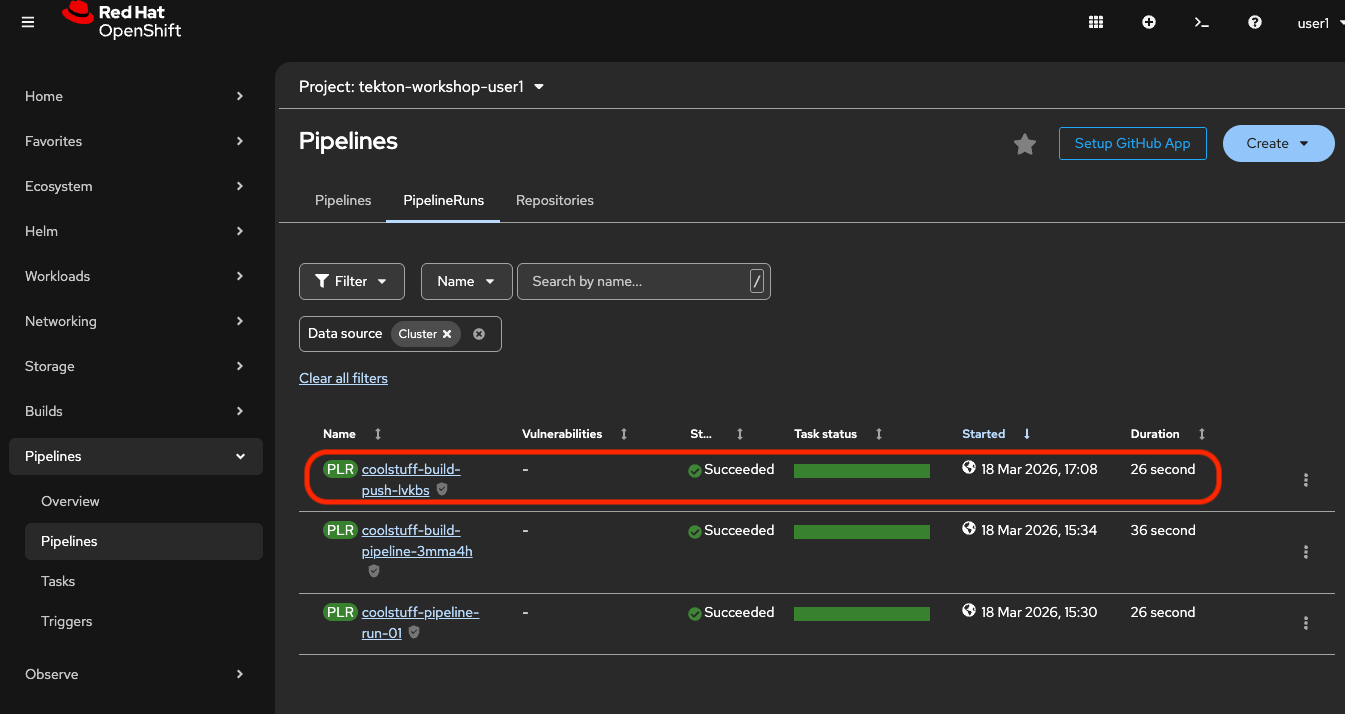 Figure 4. PAC-triggered PipelineRun created automatically on Git push
-
-
Click on the PipelineRun to see more details, like commit-id, triggering event and SHA.
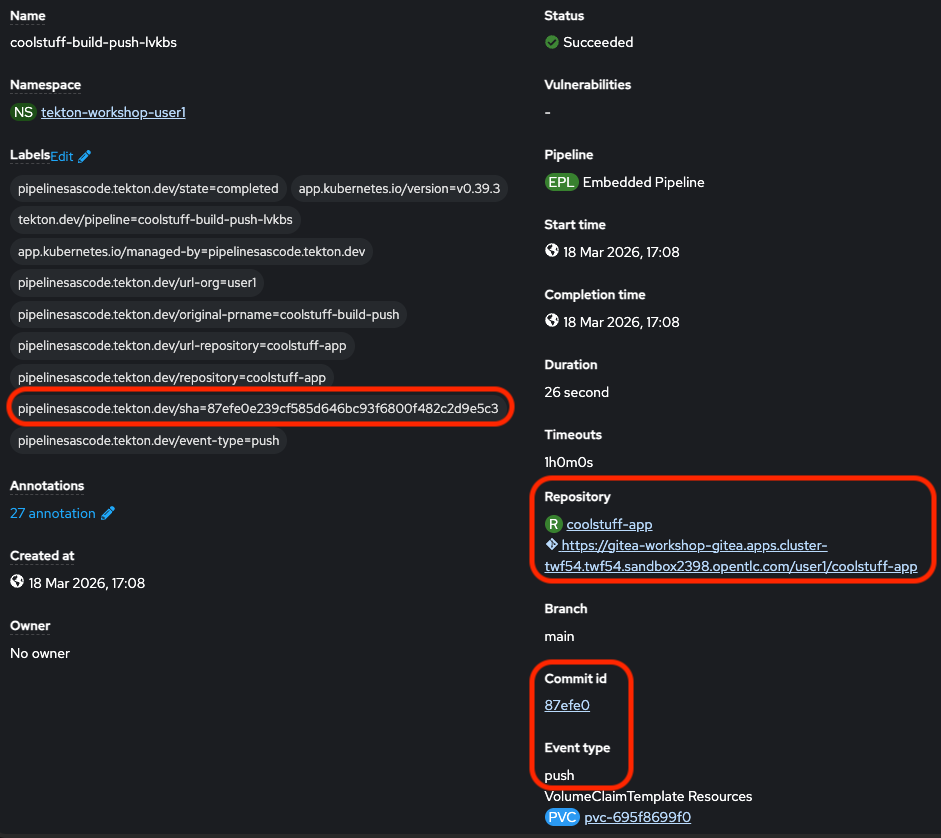 Figure 5. Details on the PAC run, with SHA
Verify
List the different pipelineruns and look at status of the runs using the CLI.
tkn pipelinerun list | head -5Look at more details for the pac-run using the terminal:
oc get pipelinerun coolstuff-build-push-CHANGE_ME -o jsonpath='{.metadata.annotations}' | jqExpected output:
{
  "chains.tekton.dev/signed": "true",
  "pipelinesascode.tekton.dev/branch": "refs/heads/main",
  "pipelinesascode.tekton.dev/controller-info": "{\"name\":\"default\",\"configmap\":\"pipelines-as-code\",\"secret\":\"pipelines-as-code-secret\", \"gRepo\": \"pipelines-as-code\"}",
  "pipelinesascode.tekton.dev/event-type": "push",
  "pipelinesascode.tekton.dev/git-auth-secret": "pac-gitauth-dghdpx",
  "pipelinesascode.tekton.dev/git-provider": "gitea",
  "pipelinesascode.tekton.dev/log-url": "https://console-openshift-console.apps.cluster-twf54.twf54.sandbox2398.opentlc.com/k8s/ns/tekton-workshop-user1/tekton.dev~v1~PipelineRun/coolstuff-build-push-lvkbs",
  "pipelinesascode.tekton.dev/max-keep-runs": "5",
  "pipelinesascode.tekton.dev/on-event": "[push]",
  "pipelinesascode.tekton.dev/on-target-branch": "[main]",
  "pipelinesascode.tekton.dev/original-prname": "coolstuff-build-push",
  "pipelinesascode.tekton.dev/repo-url": "https://gitea-workshop-gitea.apps.cluster-twf54.twf54.sandbox2398.opentlc.com/user1/coolstuff-app",
  "pipelinesascode.tekton.dev/repository": "coolstuff-app",
  "pipelinesascode.tekton.dev/scm-reporting-plr-started": "true",
  "pipelinesascode.tekton.dev/sender": "user1",
  "pipelinesascode.tekton.dev/sha": "87efe0e239cf585d646bc93f6800f482c2d9e5c3",
  "pipelinesascode.tekton.dev/sha-title": "Update .tekton/push-pipeline.yaml\n",
  "pipelinesascode.tekton.dev/sha-url": "https://gitea-workshop-gitea.apps.cluster-twf54.twf54.sandbox2398.opentlc.com/user1/coolstuff-app/commit/87efe0e239cf585d646bc93f6800f482c2d9e5c3",
  "pipelinesascode.tekton.dev/source-branch": "refs/heads/main",
  "pipelinesascode.tekton.dev/source-repo-url": "https://gitea-workshop-gitea.apps.cluster-twf54.twf54.sandbox2398.opentlc.com/user1/coolstuff-app",
  "pipelinesascode.tekton.dev/state": "completed",
  "pipelinesascode.tekton.dev/url-org": "user1",
  "pipelinesascode.tekton.dev/url-repository": "coolstuff-app",
  "results.tekton.dev/record": "tekton-workshop-user1/results/d54963a0-1cc6-48d2-896c-107f1bd7a00d/records/d54963a0-1cc6-48d2-896c-107f1bd7a00d",
  "results.tekton.dev/recordSummaryAnnotations": "{\"repo\":\"coolstuff-app\",\"commit\":\"87efe0e239cf585d646bc93f6800f482c2d9e5c3\",\"eventType\":\"push\"}",
  "results.tekton.dev/result": "tekton-workshop-user1/results/d54963a0-1cc6-48d2-896c-107f1bd7a00d",
  "results.tekton.dev/stored": "true"
}-
The most recent PipelineRun name includes the commit SHA
-
Status shows
Succeeded -
The run was created automatically without an
oc applycommand
Exercise 3: Use GitOps commands to control pipeline runs
One of the most useful features of Pipelines as Code is the ability to control pipeline runs with comments on a pull request. In this exercise, you’ll create a pull request in Gitea, observe the automatic pipeline trigger, and use /retest to re-trigger a run without pushing new code.
Create a feature branch and work with pull requests
-
In the Gitea web ui, navigate to your
coolstuff-apprepository. -
Click Add File then New file.
-
Name the file
change.txtand add a line in the file — for example, add a line## Module 4 update. -
Set the commit message to
Add module 4 update note. -
Instead of committing directly to
main, select Create a new branch for this commit. Name the branchfeature/module-4-update. -
Click Propose file change to create the branch.
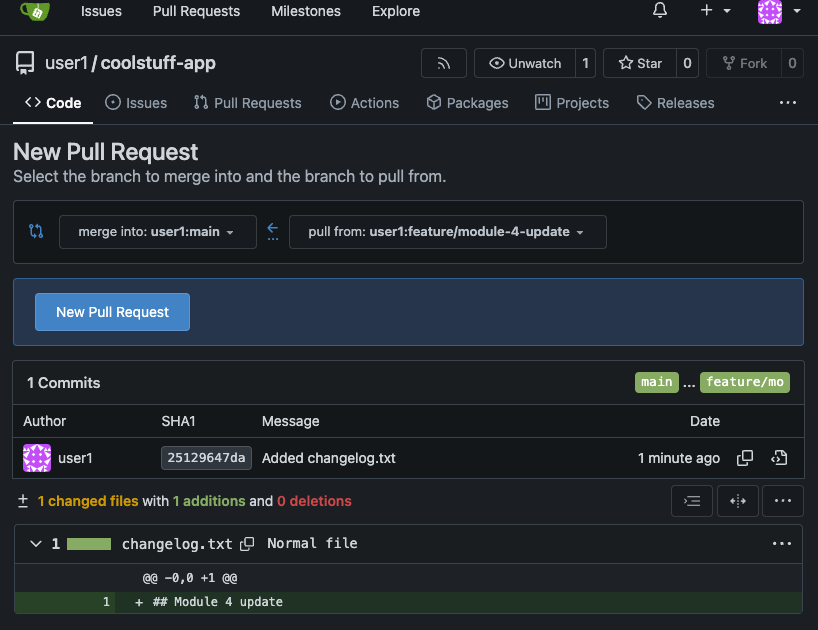 Figure 6. New file committed, pull request waiting
 -
Click on new Pull Request to open a pull request to merge your change into the
mainbranch.-
On the pull request creation page, confirm the base branch is
mainand click Create Pull Request.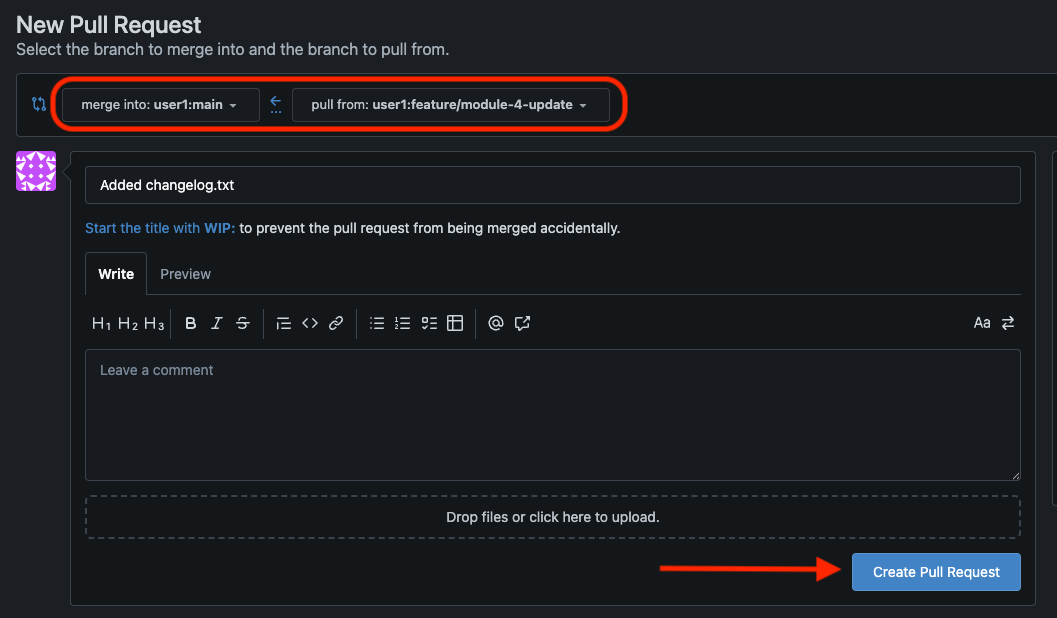
-
-
Verify that your branch has been created.
-
Using the terminal verify that no new pipelineRun has been triggered.
-
Since we only have the main branch configured to trigger on push no PipelineRun will be started for feature branches.
oc get pipelinerun
-
-
Click Create merge commit and then Merge your pull request to main. This will trigger a new pipelineRun.
Add triggers on Pull Request events
-
To fix pipelineRuns on pull request we need to add a trigger to our pipelinerun file in the
.tektonfolder in Gitea.-
Let’s take a look at the
.tekton/push-pipeline.yamlfile in Gitea. It contains annotations only includespushandmainas a trigger events.
-
-
We will now update the file to add pull request support as shown below.
-
To add pull request triggering, edit
.tekton/push-pipeline.yaml(click on the pencil icon to the right - Edit file) in Gitea and update the annotation:... pipelinesascode.tekton.dev/on-event: "[push, pull_request]" ...Commit this change to
main.
-
-
Return to the Terminal tab and watch for a new PipelineRun triggered by the push event:
oc get pipelinerun -w -
When the run has completed, edit the
change.txtfile by clicking on the file in the repository and then clicking on the pencil icon on the right side.-
Add a new line below the first and then scroll down to the bottom and choose Create a new branch for this commit and start a pull request
-
Name the branch
feature/module4-neweditthen click on Propose file change
-
-
Click on New Pull Request then Click on Create Pull request. This will now trigger a pipelineRun in OpenShift.
-
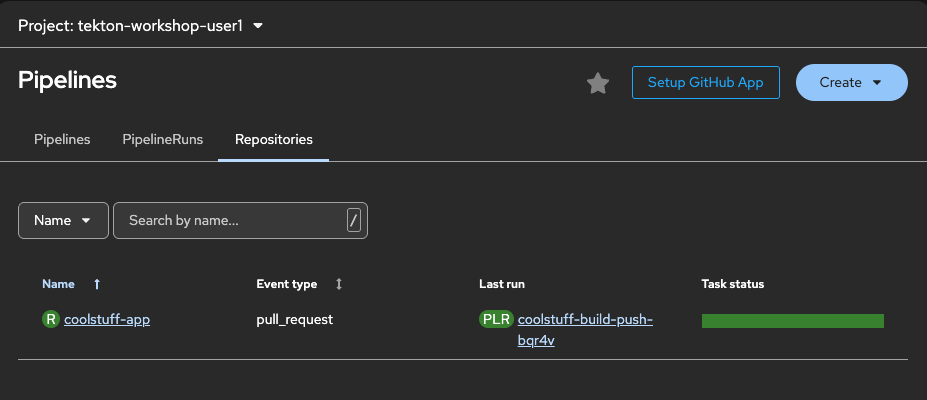
In the OpenShift console in the left hand menu fold out Pipelines then click Pipelines. In the center view click on Repositories.
-
In the list you can see the status of the latest run and see the Event is
pull_request. -
Open up the pipelineRun to see more details.
-
Use GitOps commands in pull request comments
Once a pipeline run has completed for the pull request, you can control re-execution using PR comments.
-
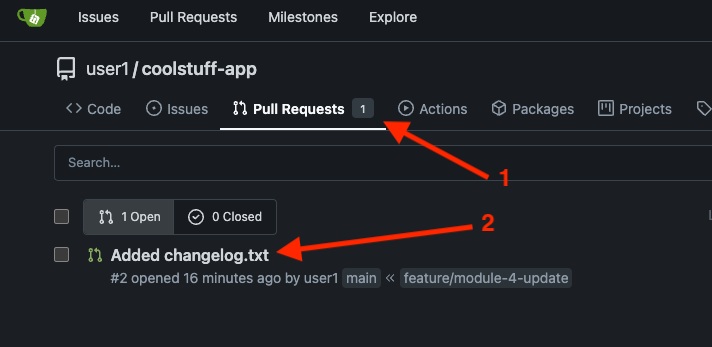
In Gitea, open up the previous pull request.
-
Click Comment and type
/testin the comment body and submit.PAC detects the comment from an authorized user and triggers a new PipelineRun for the same commit. This is useful when you want to retry a CI run without pushing new code — for example, after a transient infrastructure failure.
-
In the pipelines console for the actual run you can see the Event type for this new run:
-
Event type:
test-all-comment
-
-
Watch the new run appear in the terminal:
tkn pipelinerun list | head -5 -
To cancel a running PipelineRun, post a
/cancelcomment in the pull request while a run is in progress (if no pipeline is running first start one with a /test comment on the PR).-
PAC cancels all matching running PipelineRuns for that commit.
-
Available GitOps commands, as documented in the Pipelines as Code GitOps commands reference:
-
/retest— Re-runs all failed PipelineRuns for the current commit -
/test— Runs all matching PipelineRuns regardless of current status -
/retest <pipelinerun-name>— Re-runs a specific PipelineRun by name -
/cancel— Cancels all running PipelineRuns for the current commit -
/ok-to-test— Allows repository owners to approve pipeline runs for pull requests from external contributors who are not already authorized
Verify
tkn pipelinerun list -o json | jq '.items[] | {name: .metadata.name, sha: .metadata.labels["pipelinesascode.tekton.dev/sha"], status: .status.conditions[0].reason}'-
Multiple PipelineRuns exist with the same commit SHA in their names (showing the
/retesttriggered a new run on the same commit) -
Status of the different runs
{
  "name": "coolstuff-build-push-49s2d",
  "sha": "4b6a3c4f77745d7e2f742574d5ae7ed2d6ac2dfa",
  "status": "Cancelled"
}
{
  "name": "coolstuff-build-push-xj2hf",
  "sha": "4b6a3c4f77745d7e2f742574d5ae7ed2d6ac2dfa",
  "status": "Succeeded"
}
{
  "name": "coolstuff-build-push-bqr4v",
  "sha": "4b6a3c4f77745d7e2f742574d5ae7ed2d6ac2dfa",
  "status": "Succeeded"
}
{
  "name": "coolstuff-build-push-4wd2p",
  "sha": "783c132b71495c4c5dc8985ff90738867c5c75e6",
  "status": "Succeeded"
}
{
  "name": "coolstuff-build-push-dbrqf",
  "sha": "6bd30dd1a55b8f0c6cd4d739aaef36e27a3d48c9",
  "status": "Succeeded"
}
{
  "name": "coolstuff-build-push-h6hb9",
  "sha": "b3cf23d18e17701ad4b7f7891fbe3b0f3b0c8548",
  "status": "Succeeded"
}
Module summary
Coolstuff Store’s team can now push code and see their pipeline run automatically — no manual PipelineRun creation, no separate webhook scripting, and no need to check OpenShift to see if the build passed.
What you accomplished:
-
Verified Pipelines as Code is installed and running in the cluster
-
Created a
Repositorycustom resource linking the Gitea repository to OpenShift Pipelines -
Configured a Gitea webhook to send push and pull request events to the PAC controller
-
Stored a PipelineRun template in the
.tekton/directory with event annotations -
Triggered an automatic pipeline run by pushing a commit to Gitea
-
Used
/testin a pull request comment to re-trigger a run without pushing new code
Key takeaways:
-
Pipelines as Code stores CI/CD definitions in Git alongside application code, making pipelines reviewable and versionable.
-
The
RepositoryCRD is the link between a Git repository and an OpenShift namespace. 1 Repository per Git repository. -
Annotations on the PipelineRun template control which Git events trigger the run and which branches are included.
-
PAC injects dynamic variables like
{{ revision }}and{{ source_branch }}at runtime, removing the need to hardcode commit references. -
GitOps commands (
/test,/retest,/cancel) give developers pipeline control without cluster access.
Learning outcomes
By completing this module, you should now understand:
-
How Pipelines as Code automates pipeline triggering by listening to Git events through a webhook, removing the need for manual PipelineRun creation
-
The role of the
Repositorycustom resource as the connection point between a Git repository and an OpenShift namespace -
How
.tekton/directory annotations (on-event,on-target-branch) filter which Git events trigger which pipeline definitions -
How PAC dynamic variables like
{{ revision }}and{{ source_branch }}make pipeline templates self-contained and reusable across commits and branches -
How GitOps PR commands give developers pipeline control directly in their Git workflow without requiring cluster access
Next steps:
Module 5: Monitoring and troubleshooting covers how to investigate failed pipeline runs, read logs at the task and step level, and use the console to diagnose problems quickly.