Workshop details
Timing and schedule
Technical requirements
Software versions
-
Red Hat OpenShift 4.20
-
Red Hat OpenShift Pipelines 1.21
-
OpenShift CLI (
oc) version 4.20 -
Tekton CLI (
tkn) version 0.38 or later -
Web browser (Chrome, Firefox, Safari, or Edge)
Environment details and setup
Workshop links and details
The connection details for the environment you will use are as below, come back here if you need to revisit these details:
The guide should provide the needed links timely, but if you need them you have them here too.
-
OpenShift console is accessible at:
-
You can log in with your user:
-
Username:
%OPENSHIFT_USERNAME% -
Password:
%OPENSHIFT_PASSWORD%
-
-
Gitea is accessible at:
-
Username:
%OPENSHIFT_USERNAME% -
Password:
%OPENSHIFT_PASSWORD%
-
The web terminal is accessible and running:
Pre-workshop setup
Before starting we need to log into the OpenShift web console and prepare it for the workshop.
| OpenShift ships with a web-based console that will allow users to perform various tasks via a browser. |
Log in to the OpenShift Web Console
Click on the 'OpenShift Console' button below

-
You can log in with your user if needed:
-
Username:
%OPENSHIFT_USERNAME% -
Password:
%OPENSHIFT_PASSWORD%
-
Open the 'OpenShift Web Terminal' by clicking the button below

-
Log in with your user if needed:
-
Username:
%OPENSHIFT_USERNAME% -
Password:
%OPENSHIFT_PASSWORD%
-
-
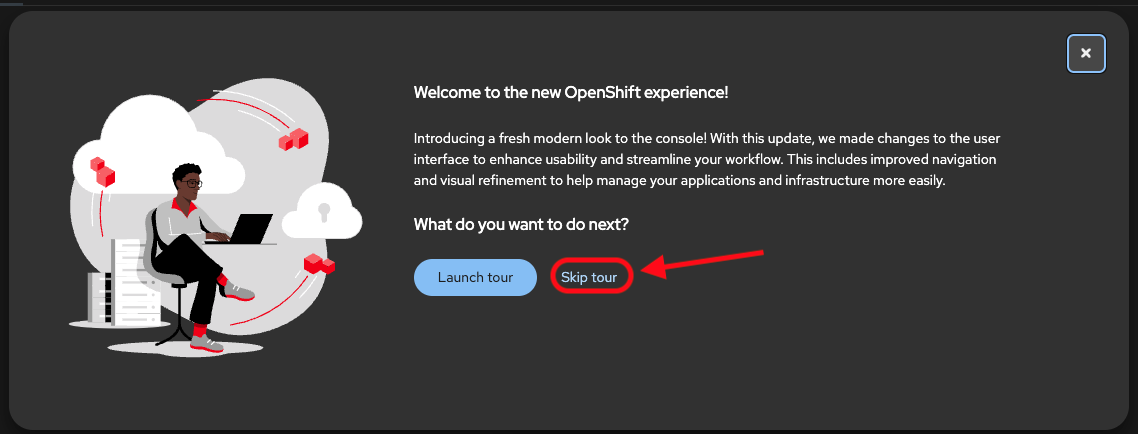
When logged in you might see this pop-up. Click on Skip Tour
-
If it’s the first time you start the Terminal you will need to initialize it. In the Initialize Terminal view enter the following:
-
Project: Create Project
-
Project Name:
tekton-workshop-%OPENSHIFT_USERNAME%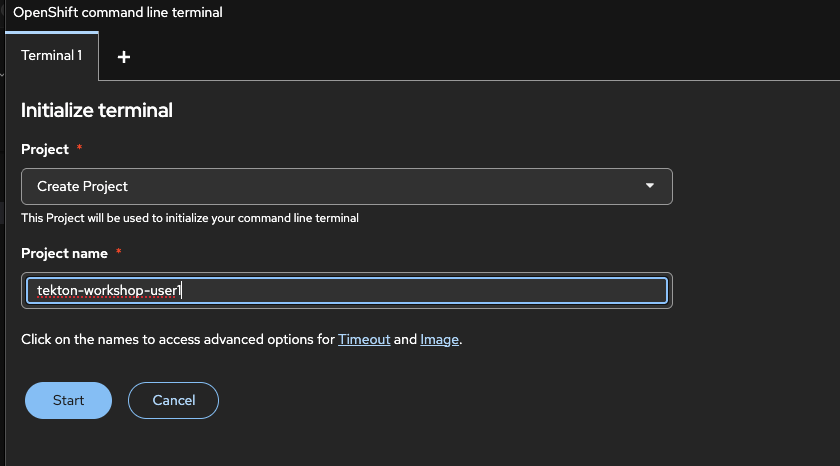
-
-
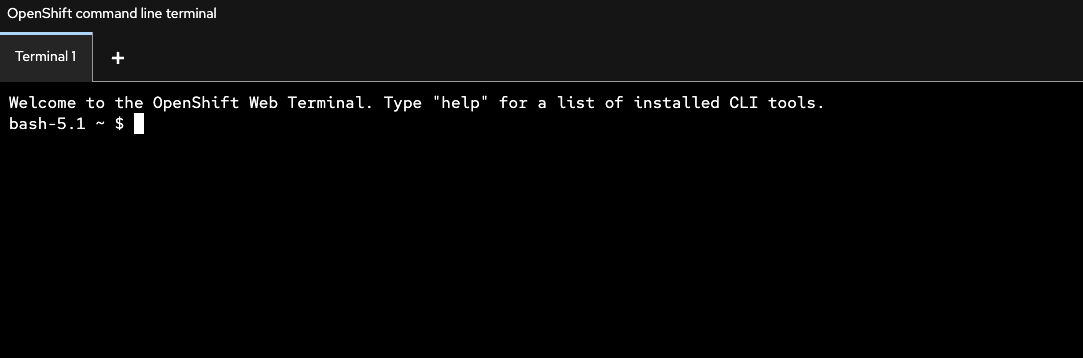
Click on start and wait for the terminal to load.
-
Keep the Terminal tab/window with the active terminal open during the whole workshop. You will work extensively in the terminal during the exercises.
|
If you, anytime during the workshop, are logged out - run the below command to log in again If the terminal window stops responding overall(the terminal runs as a pod in your project) try to open a new instance using the link provided above Or open it from the terminal icon in the top right corner or the OpenShift console as shown below, and pop it out to a separate window. 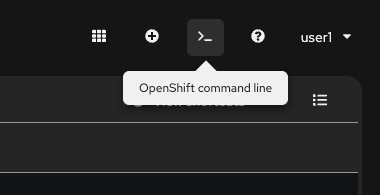
If the command does not work for CLI login, ask your facilitator for help. |