Module 3: Building your first pipeline
Coolstuff Store’s manager reviewed the work from Module 2 and is encouraged. You’ve shown that Tasks can run validate, test, and package steps automatically and that the same Task works for any service. Now comes the step that ties it all together: chaining Tasks into a Pipeline.
A Pipeline gives Coolstuff Store a single, repeatable workflow that goes from source code to packaged artifact in one command. In this module, you’ll build that pipeline, run it end-to-end, and extend it to pull source code directly from the Gitea server.
Learning objectives
By the end of this module, you’ll be able to:
-
Create a Tekton Pipeline that chains multiple Tasks using
runAfterordering -
Map Pipeline-level Parameters and Workspaces to individual Task inputs
-
Execute a Pipeline using a PipelineRun and monitor it through the visual pipeline graph
-
Extend a Pipeline by adding a Git source stage as the first step
Creating full Pipelines
A Pipeline is a collection of Tasks that are executed in a defined order and can share inputs. Tekton organizes these tasks into a directed acyclic graph (DAG), ensuring they run in the correct sequence based on their dependencies. In practice, this means Tekton creates and manages a set of Kubernetes pods, making sure each one runs to completion successfully.
Tekton gives developers fine-grained control over execution. For example, it supports fan-in and fan-out patterns between tasks, allows automatic retries for unstable or flaky steps, and enables conditional execution so that tasks only run when specific criteria are met.
Both Tasks and Pipelines are defined as custom resources within a Kubernetes cluster, making them fully declarative and Kubernetes-native.
Three concepts are key to understanding how Pipelines work:
-
runAfter: Declares that a Task must wait for another to complete before it starts. This defines sequential ordering without coupling Tasks directly. -
Pipeline Parameters: Defined at the Pipeline level and passed down to individual Tasks. This keeps TaskRuns simple, with one place to supply all values. -
Workspace mapping: A Pipeline declares workspaces and maps them to each Task’s workspace. All Tasks in a Pipeline can share the same underlying storage.
| A PipelineRun is to a Pipeline what a TaskRun is to a Task. It supplies the runtime values (parameters, workspace bindings) and creates a record of the execution. |
Exercise 1: Create your first Pipeline
You’ll create a Pipeline that chains two Tasks: the build-coolstuff-app Task from Module 2 and a new summarize-build Task that reports the build result. This gives you a complete build and report workflow in a single Pipeline.
Create the summarize-build Task
-
In the Terminal tab, confirm you are in the correct project:
oc project tekton-workshop-%OPENSHIFT_USERNAME% -
Create the
summarize-buildTask. It reads the artifact created by the build stage and prints a final build report:cat > summarize-build-task.yaml << 'EOF' apiVersion: tekton.dev/v1 kind: Task metadata: name: summarize-build spec: params: - name: app-name type: string description: Name of the application that was built - name: app-version type: string description: Version of the application that was built workspaces: - name: source description: Workspace containing the build output from the previous stage steps: - name: summarize image: registry.access.redhat.com/ubi9/ubi-minimal:latest script: | #!/usr/bin/env bash set -e echo "========================================" echo " Coolstuff Store Build Summary" echo "========================================" echo "Application : $(params.app-name)" echo "Version : $(params.app-version)" if [ -f $(workspaces.source.path)/artifact.txt ]; then ARTIFACT=$(cat $(workspaces.source.path)/artifact.txt) echo "Artifact : $ARTIFACT" echo "Status : SUCCESS -- ready for deployment" else echo "Status : FAILED -- artifact.txt not found" exit 1 fi echo "========================================" EOF -
Apply the Task:
oc apply -f summarize-build-task.yamlExpected output:
task.tekton.dev/summarize-build created
Create the Pipeline
-
Create the
coolstuff-build-pipelinepipeline definition. It chainsbuild-coolstuff-appfollowed bysummarize-build, passing Parameters and the shared Workspace through both Tasks:cat > coolstuff-pipeline.yaml << 'EOF' apiVersion: tekton.dev/v1 kind: Pipeline metadata: name: coolstuff-build-pipeline spec: params: - name: app-name type: string default: "coolstuff-store-app" description: Name of the application to build - name: app-version type: string default: "1.0.0" description: Version of the application to build workspaces: - name: shared-data description: Shared workspace passed to all pipeline tasks tasks: - name: build taskRef: name: build-coolstuff-app params: - name: app-name value: $(params.app-name) - name: app-version value: $(params.app-version) workspaces: - name: source workspace: shared-data - name: summarize runAfter: - build taskRef: name: summarize-build params: - name: app-name value: $(params.app-name) - name: app-version value: $(params.app-version) workspaces: - name: source workspace: shared-data EOFThe workspace name in each task entry ( name: source) is the name defined in the Task spec. Theworkspace: shared-datavalue is the Pipeline-level workspace name. These do not need to match — this mapping is how the same Pipeline workspace reaches Tasks with different workspace names. -
Apply the Pipeline:
oc apply -f coolstuff-pipeline.yamlExpected output:
pipeline.tekton.dev/coolstuff-build-pipeline created
-
Inspect the Pipeline structure:
tkn pipeline describe coolstuff-build-pipelineExpected output includes:
Name:        coolstuff-build-pipeline

Params
 NAME          TYPE     DEFAULT
 app-name      string   coolstuff-store-app
 app-version   string   1.0.0

Workspaces
 NAME          OPTIONAL
 shared-data   false

Tasks
 NAME       TASKREF              RUNAFTER
 build      build-coolstuff-app
 summarize  summarize-build      build
-
tkn pipeline describeshows two tasks with correctrunAfterordering
-
Verify
Confirm the Pipeline is registered in the cluster:
oc get pipeline coolstuff-build-pipelineExpected output:
NAME                       AGE
coolstuff-build-pipeline   17s
-
Pipeline name is
coolstuff-build-pipeline
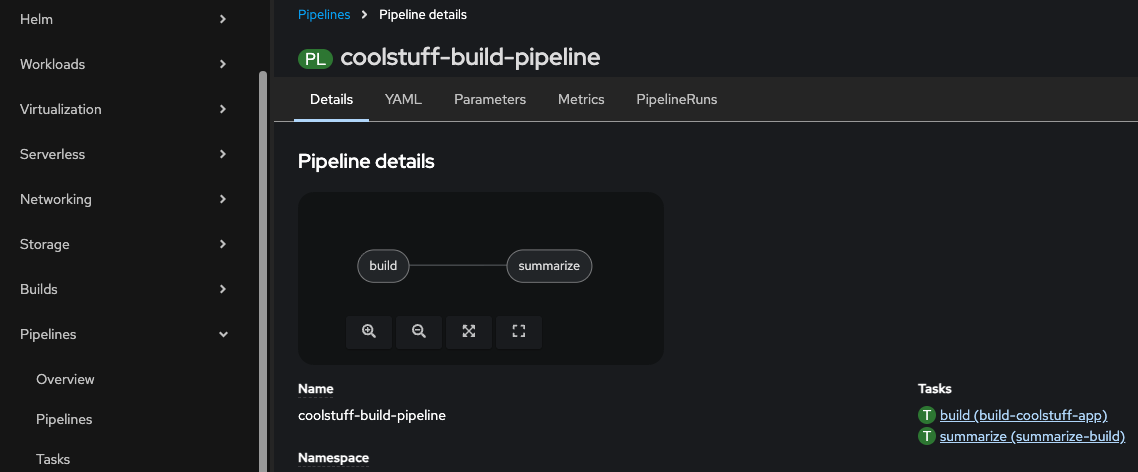
Open the OpenShift console and view the pipeline in the Pipelines section. Fold out Pipelines then click Pipelines and in the center view click the coolstuff-build-pipeline
The pipeline view shows a visual overview of the pipeline as well as more details about it. On the right hand side of the view we can see the two different Tasks we use in the pipeline as well as the workspace we use to store data between tasks.
Exercise 2: Run the Pipeline with a PipelineRun
With the Pipeline defined, you’ll create a PipelineRun to execute it. The PipelineRun is where you supply the runtime values: parameter values and the workspace binding. After it starts, you’ll view the visual pipeline graph in the OpenShift console, one of the most useful features for understanding pipeline status at a glance.
-
Create the PipelineRun definition:
cat > coolstuff-pipelinerun-01.yaml << 'EOF' apiVersion: tekton.dev/v1 kind: PipelineRun metadata: name: coolstuff-pipeline-run-01 spec: pipelineRef: name: coolstuff-build-pipeline params: - name: app-name value: "coolstuff-store-frontend" - name: app-version value: "3.0.0" workspaces: - name: shared-data persistentVolumeClaim: claimName: workshop-pvc EOF -
Apply the PipelineRun:
oc apply -f coolstuff-pipelinerun-01.yamlExpected output:
pipelinerun.tekton.dev/coolstuff-pipeline-run-01 created
-
Follow the logs for the entire pipeline:
tkn pipelinerun logs coolstuff-pipeline-run-01 -fExpected output:
[build : validate] === Validating coolstuff-store-frontend v3.0.0 ===
[build : validate] Workspace path: /workspace/source
[build : validate] Validation passed.
[build : test] === Running tests for coolstuff-store-frontend ===
[build : test] Continuing from: validate-complete
[build : test] All tests passed.
[build : package] === Packaging coolstuff-store-frontend v3.0.0 ===
[build : package] Continuing from: test-complete
[build : package] Package created: coolstuff-store-frontend-3.0.0.tar.gz
[summarize : summarize] ========================================
[summarize : summarize]   Coolstuff Store Build Summary
[summarize : summarize] ========================================
[summarize : summarize] Application : coolstuff-store-frontend
[summarize : summarize] Version     : 3.0.0
[summarize : summarize] Artifact    : coolstuff-store-frontend-3.0.0.tar.gz
[summarize : summarize] Status      : SUCCESS -- ready for deployment
[summarize : summarize] ========================================
The log prefix format is
[task-name : step-name], which shows exactly which task and step produced each line. -
While the PipelineRun is running (or after it completes), view the visual pipeline graph.
-
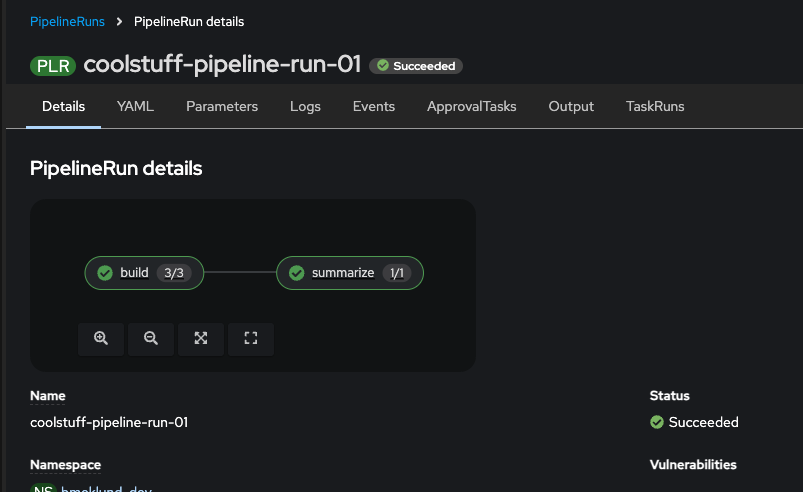
In the OpenShift console, fold out the Pipelines section, then click Pipelines again and then select the PipelineRuns tab before clicking on the
coolstuff-pipeline-run-01. Here you can see the visual graph of the executed PipelineRun as well as the overall status:Succeeded.
-
Verify
Confirm the PipelineRun completed successfully:
oc get pipelinerun coolstuff-pipeline-run-01 \
  -o jsonpath='{.status.conditions[0].reason}'&& echo
Expected output:
Succeeded
tkn pipelinerun listExpected output:
NAME                       STARTED        DURATION   STATUS
coolstuff-pipeline-run-01  1 minute ago   35s        Succeeded
-
PipelineRun status is
Succeeded -
Log output shows both
buildandsummarizetask logs -
The pipeline graph in the console shows both nodes with a green status
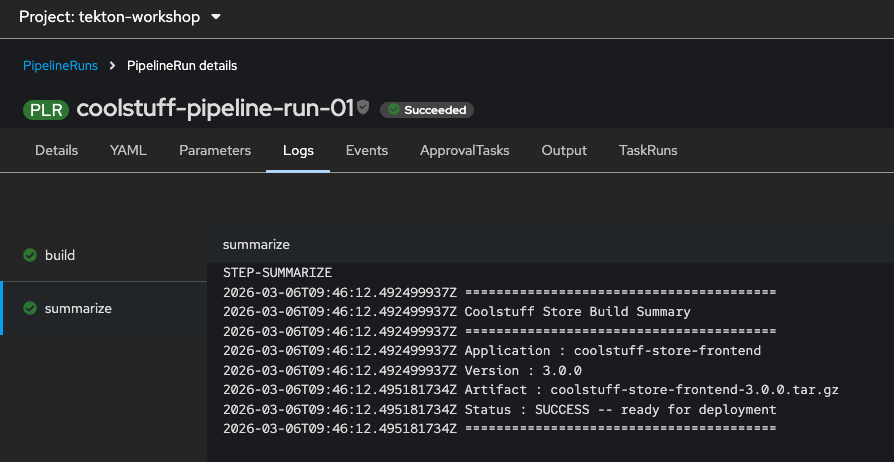
View the visual output of the pipeline run in the OpenShift console. Fold out the Pipelines section, then click Pipelines again and then select the PipelineRuns tab before clicking on the coolstuff-pipeline-run-01.
Click on the Logs tab and view the logs from the two tasks.
Exercise 3: Add a Git source stage to the Pipeline
Coolstuff Store’s pipeline currently starts by assuming the source code is already in the workspace. In a real CI/CD workflow, the first stage should clone source code from Git. In this exercise, you’ll create a clone-source Task that pulls code from the Gitea server, then extend the Pipeline to use it as the first stage.
Create a repository in Gitea
The first step is to create a Git repository to clone in the pipeline. You can use any Git server (e.g. GitHub, BitBucket, etc). For this lab we will use a Gitea git server.
Click on the 'Developer Repository' button below

-
In the right top corner click Sign In
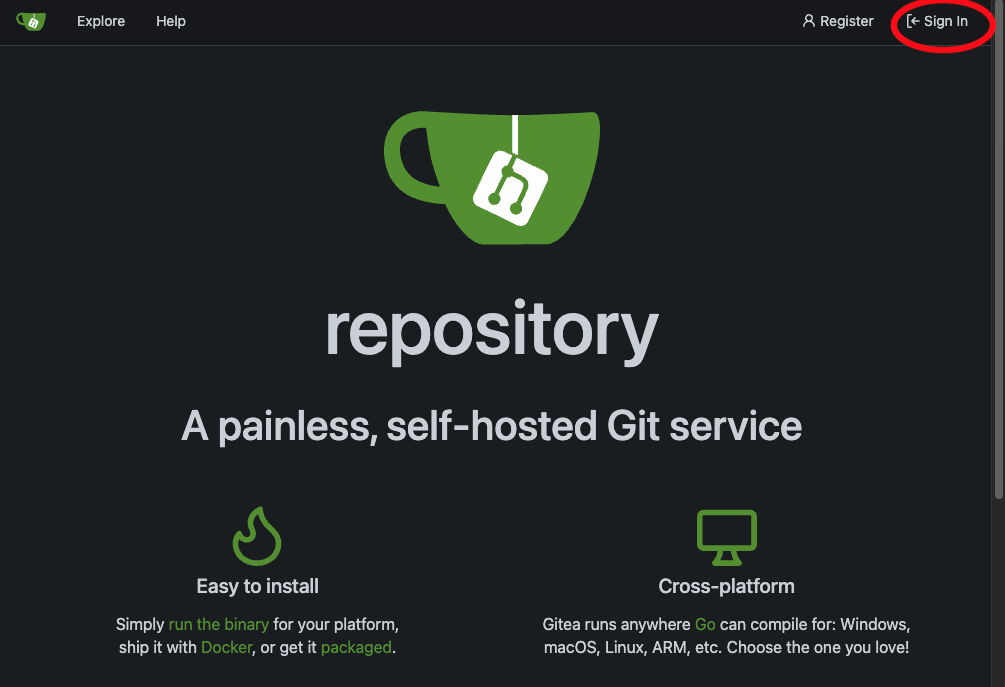 Figure 4. Gitea’s start page with sign in
 -
Log in with your user:
-
Username:
%OPENSHIFT_USERNAME% -
Password:
%OPENSHIFT_PASSWORD%
-
-
In the top right corner, click the + icon and select New repository
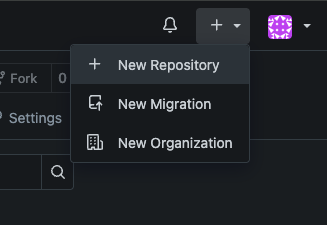 Figure 5. Create new repo in Gitea
 -
Fill in the repository details:
-
Repository name:
coolstuff-app -
Visibility: Private (or Public — either works)
-
Description: A coolstuff application
-
Check Initialize repository (Adds .gitignore, License and README)
-
-
Click Create repository.
-
You will now see your initialized repository with a basic readme file looking like the below picture. If you click Code you can note the repository clone URL displayed.
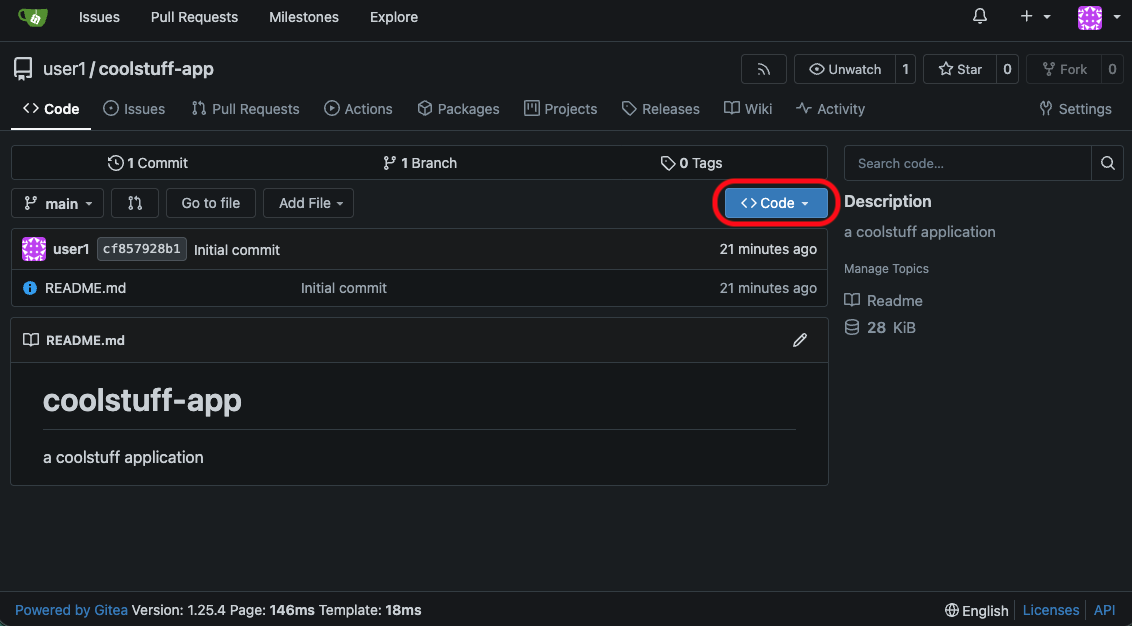 Figure 6. Gitea center view of created repository with button to clone code
 -
The clone URL will look like this if you named it correctly.
https://gitea-workshop-gitea.%APPS_HOSTNAME_SUFFIX%/%OPENSHIFT_USERNAME%/coolstuff-app.gitUpdate the Pipeline to add a git clone task
You have used OpenShift Pipelines in the web console previously to view the tekton resources you created via the CLI.
But the OpenShift Pipelines console can be used for more, it provides a graphical interface to create, manage, and visualize CI/CD pipelines
Key Features:
-
Pipeline Builder: Create pipelines visually using pre-installed tasks (e.g., git-clone, s2i-nodejs, buildah) without writing YAML manually.
-
PipelineRuns & TaskRuns: View execution history, status, logs, and events for pipeline runs directly in the console.
-
Topology View: Visualize pipeline flows and their relationships with applications and resources.
-
Statistics & Metrics: With the OpenShift Pipelines console plugin (requires OpenShift 4.15+ and Tekton Results), view execution statistics like success rate, duration, and pipeline run trends.
-
Manual Approvals: Tech preview support for approval steps in pipelines via ApprovalTask.
| Doing it manually in the console is a good way to learn about OpenShift Pipelines and it’s capabilities. It’s not something you do in a production or even test environment though. You can also do this manually using the CLI as before, or more commonly done - using GitOps and ArgoCD. |
This time we will update our pipeline in the OpenShift console using the Pipeline Builder.
-
Go to the OpenShift console, fold out Pipelines and then click Pipelines. Click the already created coolstuff-build-pipeline and then on the right side click on Actions and Edit Pipeline.
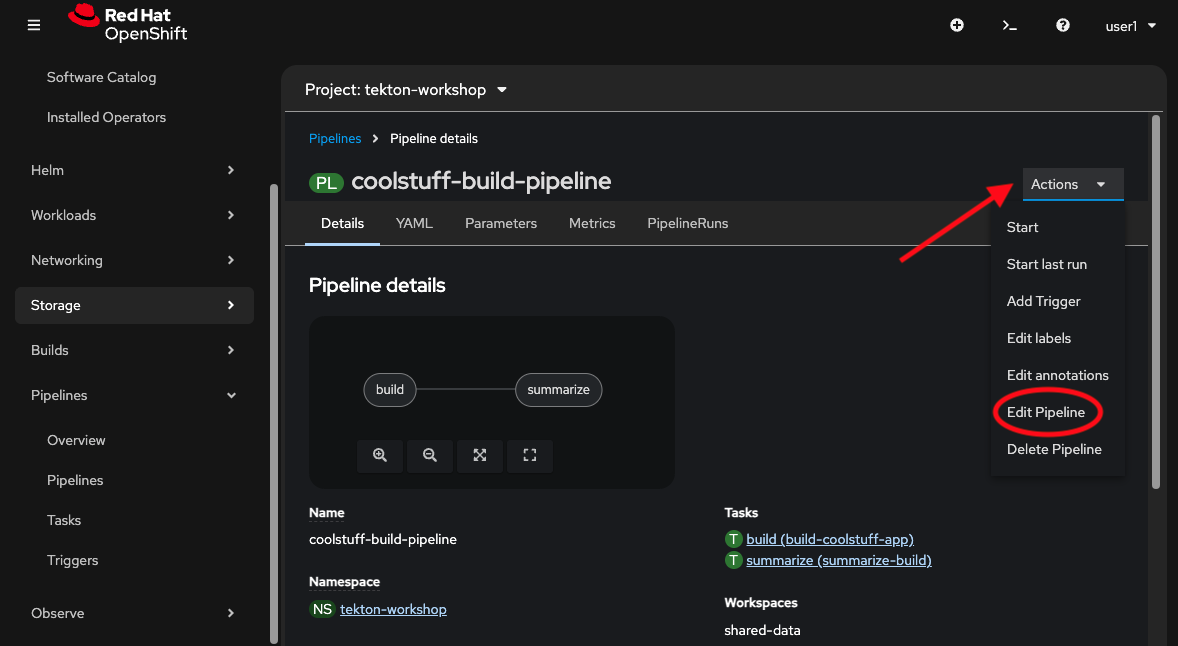 Figure 7. Edit the pipeline in the Pipeline builder
 -
Make sure you have selected the Pipeline builder choice in the center view.
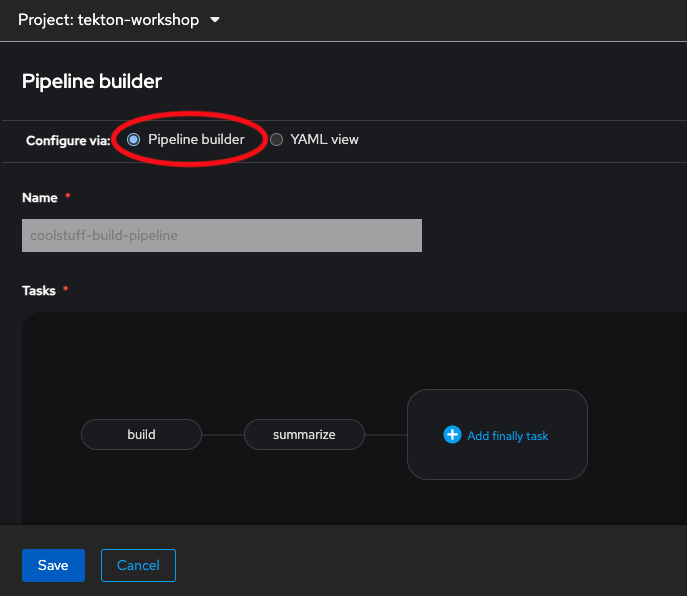 Figure 8. Edit the pipeline in the Pipeline builder
 -
Add a task before the previously first task. Hover over the build task and click on the blue + sign that appears on the left hand side of build.
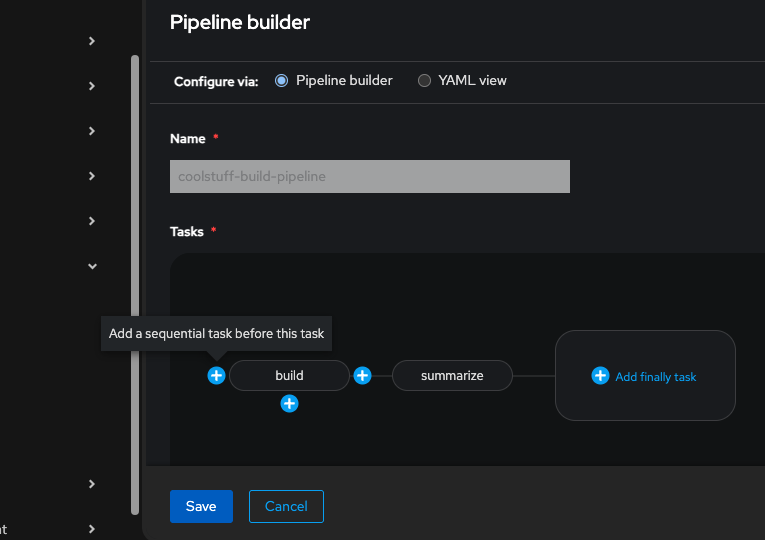 Figure 9. Hover over task to add a new task before
 -
Click Add Task and start typing
git-clone. Tasks will appear in a list below. Choose the git-clone tagged with Red Hat. Then Click Add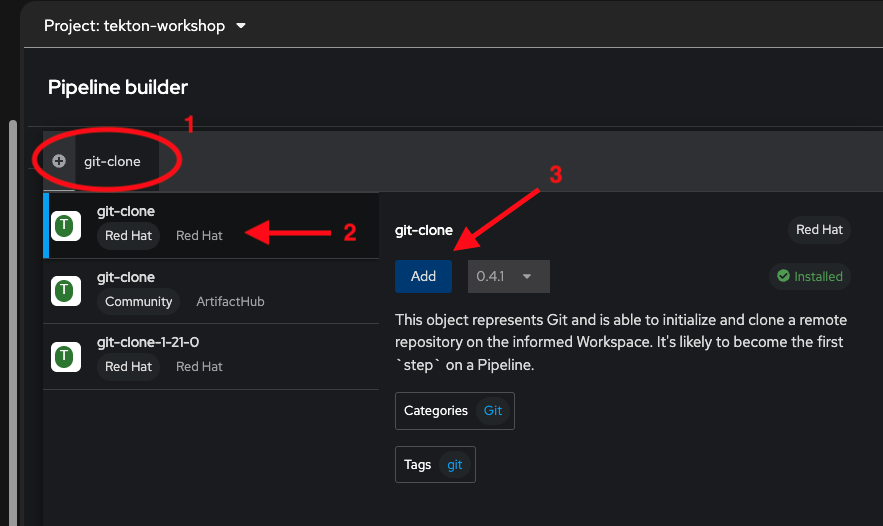 Figure 10. Adding a git-clone task
The git-clone task we use here is a default task provided by the OpenShift Pipeline installation. OpenShift Pipelines comes with a large number of tasks you can use out of the box. -
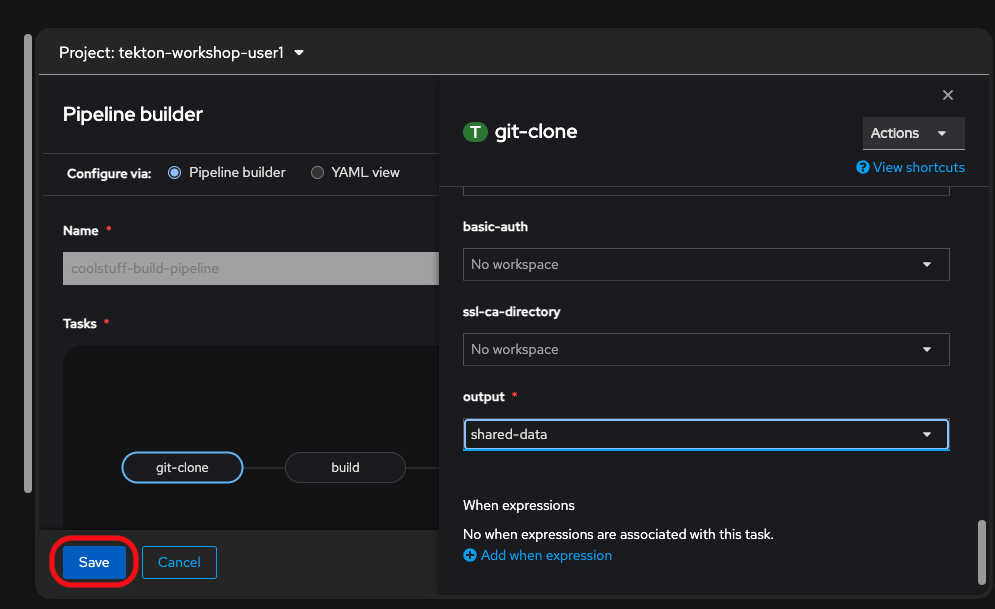
The updated Pipeline now has 3 tasks:
git-clone, thenbuild, thensummarize. We now need to configure our git-clone task. Click on the git-clone task and fill in the following fields:Field Value Display name
git-clone
URL
https://gitea-workshop-gitea.%APPS_HOSTNAME_SUFFIX%/%OPENSHIFT_USERNAME%/coolstuff-app.git
output
shared-data
-
Click on Save to save the configuration. Verify that the red exclamation mark is gone and the git-clone task is looking good.
Start a new PipelineRun for your new Pipeline
With the added task to clone a remote repository we will now kick off a new PipelineRun for the updated Pipeline.
-
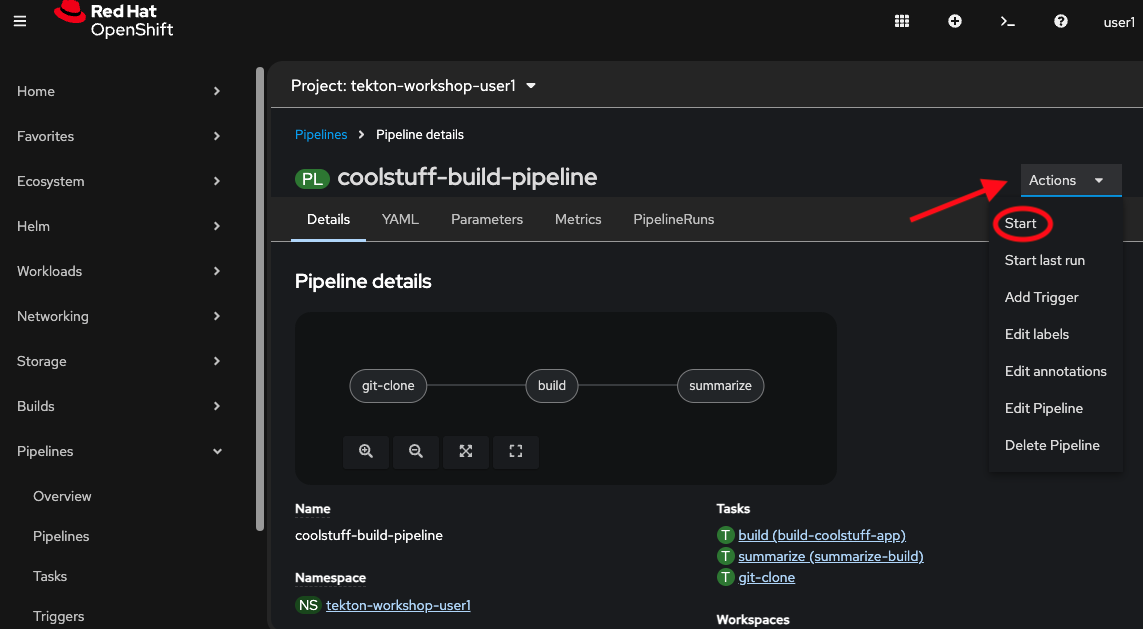
In the view of the coolstuff-build-pipeline click on Actions and then Start.
-
Start will open up a new window with parameters to configure for the PipelineRun. Leave the majority as defaults.
-
But make sure to set
VolumeClaimTemplateas the base for the shared-data workspace.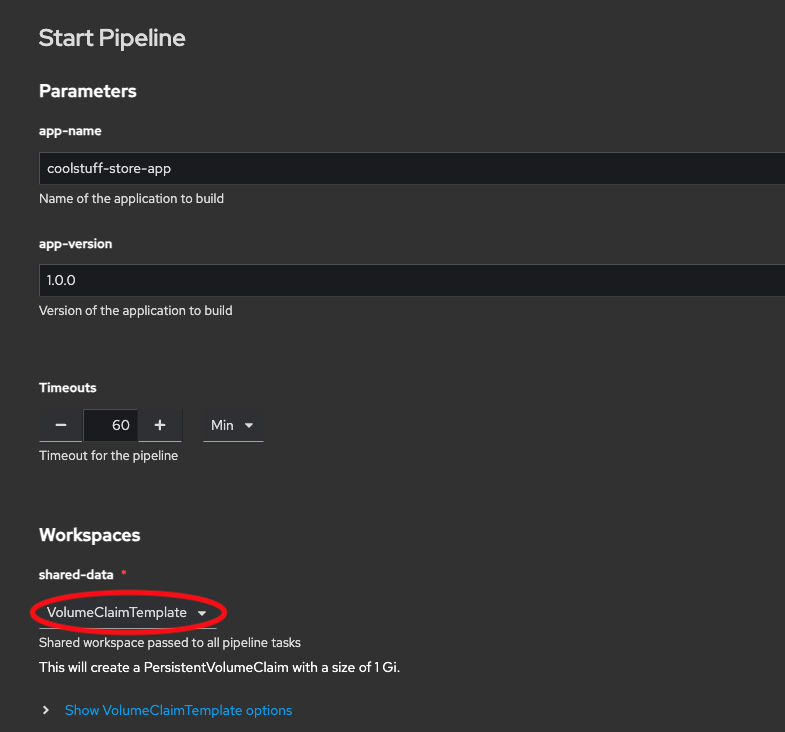
-
-
Click Start at the bottom of the page to start the PipelineRun.
-
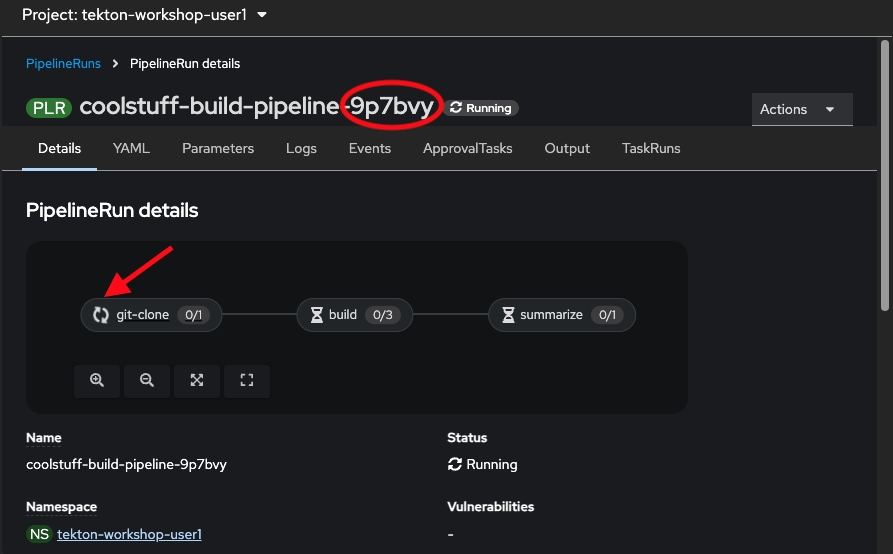
After clicking Start you will be redirected to the PipelineRun overview of your running instance.
-
Take note of the instance-id of your specific execution(9p7bvy in the below example) - you will need this generated id later on.
-
You can also follow the progress of your PipelineRun, different icons will be showed on the different tasks in the central view depending on the state of them.
-
-
When all the tasks in the pipeline have executed without issues the overview will be updated showing the status of the PipelineRun which should be:
Succeeded. -
If you have jumped out of the view you can find it again in the console under Pipelines → PipelineRuns →
coolstuff-pipeline-random-id-
Click the pipelineRun and verify its all green and marked as
Succeeded.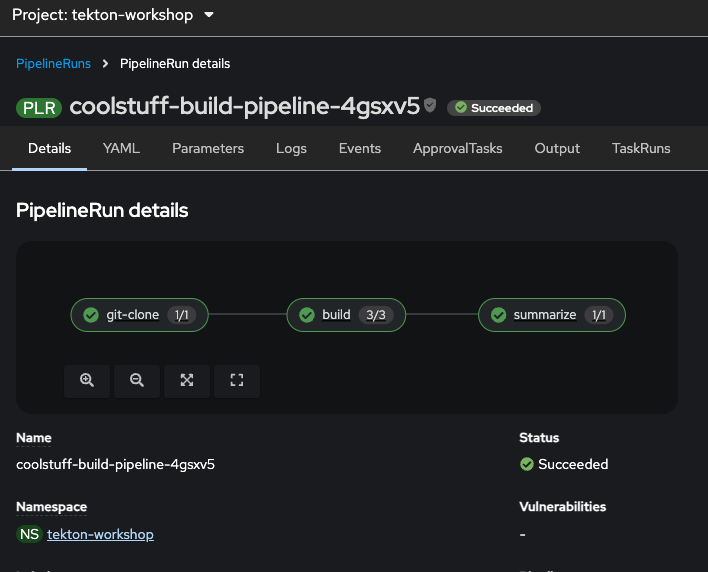 Figure 12. 3-stage pipeline from Git source to packaged artifact
-
-
You can also check the status of the different Tasks in the PipelineRun using the OpenShift CLI
You will have to check what the random id appended on your pipelinerun-instance is and adjust the above command with your id instead. You can see the specific id appended on your pipelineRun in the OpenShift console. oc get pods -l tekton.dev/pipelineRun=coolstuff-build-pipeline-CHANGE_MEExpected output (non sequential order)
NAME                                            READY   STATUS      RESTARTS   AGE
coolstuff-build-pipeline-9p7bvy-build-pod       0/3     Completed   0          35m
coolstuff-build-pipeline-9p7bvy-git-clone-pod   0/1     Completed   0          36m
coolstuff-build-pipeline-9p7bvy-summarize-pod   0/1     Completed   0          35m
-
Finally, check the full pipeline log in the terminal using
tkn:
tkn pipelinerun logs coolstuff-build-pipeline-CHANGE_ME -fExpected output:
tkn pipelinerun logs coolstuff-build-pipeline-someId -f
[git-clone : prepare-and-run] Running Script /scripts/prepare.sh
[git-clone : prepare-and-run] ---> Phase: Preparing the filesystem before cloning the repository...
[git-clone : prepare-and-run] ---> Phase: Deleting all contents of checkout-dir '/workspace/output/'...
[git-clone : prepare-and-run] removed directory '/workspace/output//lost+found'
[git-clone : prepare-and-run] Running Script /scripts/git-run.sh
[git-clone : prepare-and-run] ---> Phase: Setting output workspace as safe directory ('/workspace/output')...
[git-clone : prepare-and-run] ---> Phase: Setting up HTTP_PROXY=''...
[git-clone : prepare-and-run] ---> Phase: Settting up HTTPS_PROXY=''...
[git-clone : prepare-and-run] ---> Phase: Setting up NO_PROXY=''...
[git-clone : prepare-and-run] ---> Phase: Cloning 'https://repository-gitea.apps.cluster-mwqps.mwqps.sandbox3925.opentlc.com/user1/coolstuff-app.git' into '/workspace/output/'...
[git-clone : prepare-and-run] + exec git-init -url=https://repository-gitea.apps.cluster-mwqps.mwqps.sandbox3925.opentlc.com/user1/coolstuff-app.git -revision=main -refspec= -path=/workspace/output/ -sslVerify=true -submodules=true -depth=1 -sparseCheckoutDirectories=
[git-clone : prepare-and-run] {"level":"info","ts":1772811781.4634206,"caller":"git/git.go:384","msg":"Retrying operation (attempt 1)"}
[git-clone : prepare-and-run] {"level":"info","ts":1772811782.1669984,"caller":"git/git.go:218","msg":"Successfully cloned https://repository-gitea.apps.cluster-mwqps.mwqps.sandbox3925.opentlc.com/user1/coolstuff-app.git @ cf857928b1dae224f4259bbfea38b2576b0ab568 (grafted, HEAD, origin/main) in path /workspace/output/"}
[git-clone : prepare-and-run] {"level":"info","ts":1772811782.1670656,"caller":"git/git.go:384","msg":"Retrying operation (attempt 1)"}
[git-clone : prepare-and-run] {"level":"info","ts":1772811782.8715403,"caller":"git/git.go:267","msg":"Successfully initialized and updated submodules in path /workspace/output/"}
[git-clone : prepare-and-run] Running Script /scripts/report.sh
[git-clone : prepare-and-run] ---> Phase: Collecting cloned repository information ('/workspace/output/')...
[git-clone : prepare-and-run] ---> Phase: Setting output workspace as safe directory ('/workspace/output')...
[git-clone : prepare-and-run] ---> Phase: Reporting last commit date '1772806132'...
[git-clone : prepare-and-run] ---> Phase: Reporting parsed revision SHA 'cf857928b1dae224f4259bbfea38b2576b0ab568'...
[git-clone : prepare-and-run] ---> Phase: Reporting repository URL 'https://repository-gitea.apps.cluster-mwqps.mwqps.sandbox3925.opentlc.com/user1/coolstuff-app.git'...

[build : validate] === Validating coolstuff-store-app v1.0.0 ===
[build : validate] Workspace path: /workspace/source
[build : validate] Validation passed.

[build : test] === Running tests for coolstuff-store-app ===
[build : test] Continuing from: validate-complete
[build : test] All tests passed.

[build : package] === Packaging coolstuff-store-app v1.0.0 ===
[build : package] Continuing from: test-complete
[build : package] Package created: coolstuff-store-app-1.0.0.tar.gz

[summarize : summarize] ========================================
[summarize : summarize]   Coolstuff Store Build Summary
[summarize : summarize] ========================================
[summarize : summarize] Application : coolstuff-store-app
[summarize : summarize] Version     : 1.0.0
[summarize : summarize] Artifact    : coolstuff-store-app-1.0.0.tar.gz
[summarize : summarize] Status      : SUCCESS -- ready for deployment
[summarize : summarize] ========================================
Verify
Confirm both PipelineRuns completed, this time using the terminal:
First check the status using oc
oc get pipelinerun coolstuff-build-pipeline-CHANGE_ME \
  -o jsonpath='{.status.conditions[0].reason}'&& echo
Expected output:
Succeeded
And now list the different pipelineRuns using tkn
tkn pipelinerun listExpected output:
NAME                              STARTED          DURATION   STATUS
coolstuff-build-pipeline-9p7bvy   15 minutes ago   42s        Succeeded
coolstuff-pipeline-run-01         5 hours ago      16s        Succeeded
Module summary
Coolstuff Store’s manager just watched a pipeline run end-to-end: clone source from Gitea, validate, test, package, and report. That’s the CI/CD workflow they’ve been asking for.
What you accomplished:
-
Created a
coolstuff-build-pipelinePipeline chaining two Tasks withrunAfterordering -
Ran the Pipeline using a PipelineRun and monitored it through the visual pipeline graph
-
Added a
git-cloneTask that pulls real source code from the Gitea server -
Extended the Pipeline to three stages:
git-clone,build, andsummarize
Key takeaways:
-
Pipelines define workflow order with
runAfter. Tasks remain independent and reusable. -
Pipeline Parameters flow down to Tasks. One PipelineRun value reaches all Tasks that need it.
-
Workspace mapping decouples Task workspace names from Pipeline workspace names.
-
The OpenShift console pipeline graph gives instant visual status for every stage.
Learning outcomes
By completing this module, you should now understand:
-
How Pipelines chain Tasks using
runAfterwithout creating tight coupling between them -
How Pipeline Parameters and Workspace mappings connect the Pipeline definition to each individual Task
-
How a PipelineRun provides the runtime context (parameters, workspace bindings) that a Pipeline needs to execute
-
How the OpenShift console visual pipeline graph helps operators and developers understand pipeline status at a glance
Next steps:
Module 4: Pipelines as Code covers how to store your pipelines in Git together with your application code. This enables a tighter relationship between the pipeline and the application it covers.